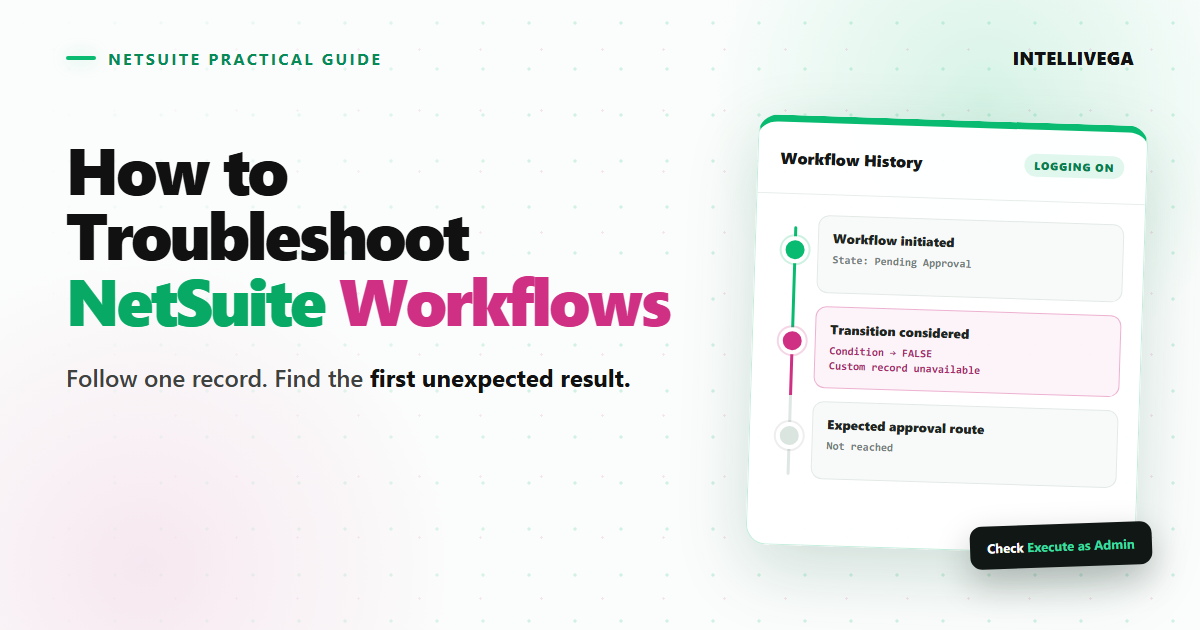
A purchase order reached the correct approval state and stopped. The approver mapping existed, and the routing conditions matched the design, but every condition that referenced the custom approval record evaluated to false.
The transaction showed no useful error. The cause became visible only in Workflow History, after we opened the execution log and enabled Show Rejected Actions/Transitions. NetSuite had considered the correct transitions, but the workflow could not read the custom record used by their conditions.
The fix was one setting: Execute as Admin. Once it was enabled, the same purchase order followed the correct route. The workflow logic was sound but was running without access to the data it needed.
This is why workflow problems can be deceptive. A missing button, blank field, stalled approval, or workflow that never starts is only a symptom. To find the cause, trace one record and answer three questions:
- Did the workflow start?
- Where did the record first leave the expected path?
- Why was the expected action or transition rejected, skipped, or never evaluated?
Before you test: make the workflow observable
Open the workflow definition and check these settings before reproducing the issue:
- Release Status: Use Testing while developing. In Testing, only the workflow owner can initiate an event-based workflow. Use Released when testing normal execution for other users. See Oracle's guide to workflow release statuses.
- Enable Logging: Turn this on to generate execution logs for server-side actions and transitions.
- Keep Instance and History: Set this to Always during the investigation so workflow history remains available after an instance finishes.
- Inactive: Confirm that the workflow is active.
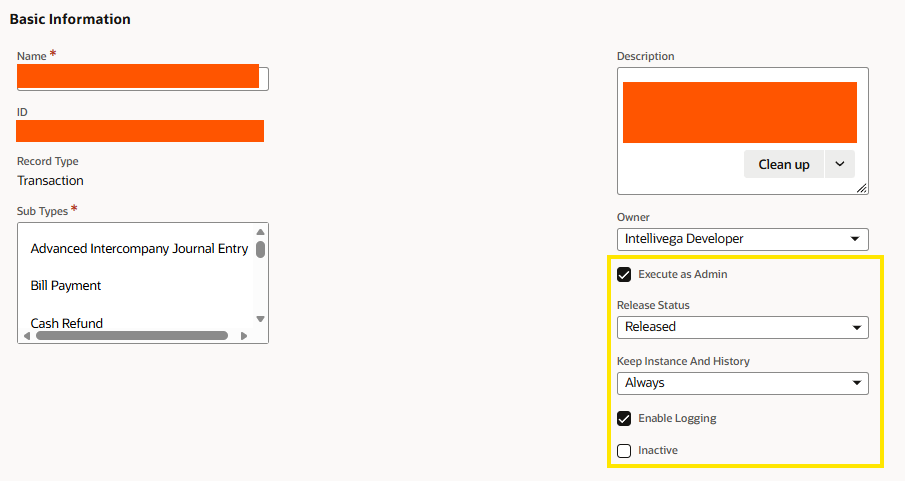
These settings are diagnostic tools, not necessarily permanent production settings. Workflow execution logs are retained for a limited time, and high-volume workflows can generate substantial history. After the issue is resolved, restore logging and retention settings appropriate for the account.
Next, choose one record that reliably reproduces the problem. Capture:
- The record's internal ID
- The date and approximate time of the attempt
- The user's role
- The execution context, such as user interface, CSV import, web services, SuiteScript, inline edit, or scheduled execution
- The relevant field values
- The expected and actual results
Whenever possible, use a new test record. An existing record may already have a workflow instance or starting values that obscure the problem.
If another user reported the issue, ask for a screen recording that begins before they open or create the record. It should show their role, the fields they change, the order of their actions, and the final result. A recording often reveals a different form, a role-specific button, a warning, or a skipped step that gets lost in a message.
1. Did the workflow start?
On the test record, open System Information > Active Workflows. This subtab shows workflow instances that are currently running, including their current state, entry times, and workflow or state field values in the Options column. Oracle documents each field on the Active Workflows subtab.

If the workflow appears there, initiation succeeded. Note its current state and field values before continuing.
If it does not appear, check Workflow History as well. Completed instances disappear from Active Workflows but remain in Workflow History when history is retained.
If neither subtab contains an instance, work through the initiation gates:
- Is the workflow Testing, Released, Not Initiating, or Suspended?
- In Testing, is the person initiating the event also the workflow owner?
- Does the workflow use the correct base record type and subtype?
- Does the initiating event match what occurred, such as create, update, or view?
- Are the event type and execution context enabled?
- Is the user included in the workflow audience and able to access the base record?
- Does the record satisfy the initiation condition or saved search?
- For a normally scheduled run, is the workflow Released, and did the saved search return the record when the scheduler evaluated it?
Scheduled workflows have one important testing exception: Execute Now can run an on-demand test of a scheduled workflow while the workflow is in Testing. A normal scheduled execution, however, requires Released status.
Change one setting at a time. If several initiation settings are changed together, the workflow may start again without revealing which gate excluded the record.
2. Where did the path first diverge?
Open Workflow History and read the state visits chronologically. Find the last state that matches the intended route. The Workflow History subtab records each visit separately, including repeated visits to the same state.

If the record reached the correct state but never left it, inspect that state's actions and transitions. If it entered the wrong state, inspect the transition that sent it there. Use the Log link for the specific state visit; this matters when a workflow enters the same state more than once.
Do not assume that the last visible symptom marks the first failure. For example, a notification may fail because an earlier action never populated its recipient. A missing Approve button may result from the state being entered on a trigger that occurs after Before Record Load, when the button would have been added.
The first unexpected event is usually more useful than the final symptom.
3. Why did the expected step not run?
In the workflow execution log, enable Show Rejected Actions/Transitions. This displays actions and transitions that NetSuite considered but did not execute, including those whose conditions evaluated to false. Oracle's Rejected Actions and Transitions documentation includes an example.
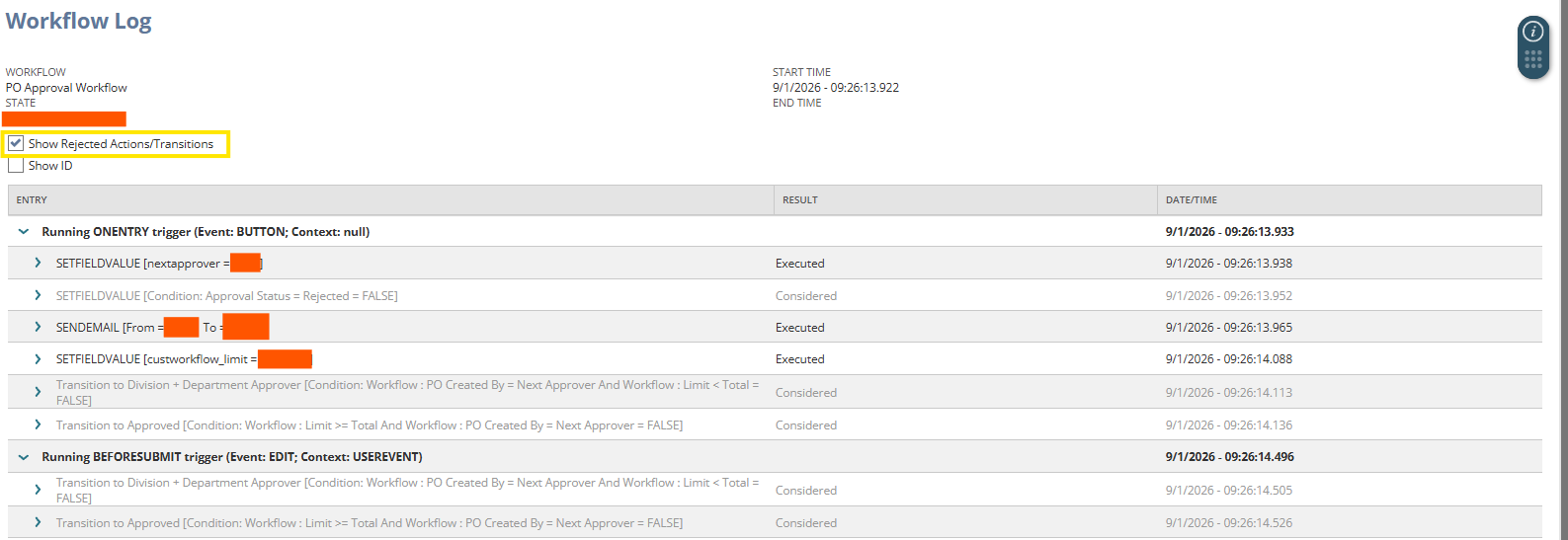
Read the log from top to bottom and compare each trigger, condition, context, and result with the design. NetSuite defines the possible action and transition statuses as follows:
- Executed: The action or transition completed successfully.
- Failed: It did not complete. The log should include the reason, and later steps for that server trigger are skipped.
- Skipped: NetSuite could not run the step because of a noncritical error or because the action was unsupported on the trigger that entered or exited the state.
- Considered: A condition evaluated to false, a condition search did not return the record, or a required dependent workflow event had not occurred.
An expected action may also be absent from the log. NetSuite only processes actions that are valid for the current trigger. If the state was entered on Before Record Submit, for example, an action configured for the earlier Before Record Load trigger will not run or appear.
Client-side triggers require a separate check because they do not appear in the workflow execution log. Reproduce those issues in the browser and inspect the form behavior and browser console where appropriate.
Trace every input to a rejected condition
When a condition is false, inspect its inputs instead of immediately rewriting the expression. A comparison such as Limit >= Total can fail because:
- The limit is blank
- The wrong workflow field was populated
- A joined-record value is unavailable
- The values use different currencies or data types
In the opening example, several conditions failed because they shared one inaccessible custom record. The transitions were not independently broken; they were missing the same input. When related conditions fail together, look for their common data source.
Use the Options column in Active Workflows to inspect current workflow and state field values. Then trace each incorrect value back to the action that sets it, the action's trigger, and its Store Result In field.
Common causes to check
Permissions and Execute as Admin
If a workflow reads an employee, vendor, custom record, or other related record, the current user may not have permission to access it. That can cause a field value used by an action or condition to resolve to null.
Enabling Execute as Admin can solve a legitimate access requirement, as it did in the purchase-order example. Use it deliberately: it gives the workflow administrator-level access and can bypass restrictions that should otherwise protect the data.
Compare the same test as the affected role and as an administrator. If it works only for the administrator, investigate the user's permissions, the workflow audience, and access to every joined record.
Trigger, event type, or context mismatch
A workflow that works in the user interface may behave differently during CSV import, web services, SuiteScript, mass update, or inline edit. Check restrictions on both the workflow and the individual action. Inline editing may also provide a partially loaded record, causing referenced values to be null.
Client-triggered formulas use JavaScript, while server-triggered formulas use SQL. A formula written for the wrong environment can fail or cause the record page to hang. Verify the formula language and the data types used in date, checkbox, list, currency, and text comparisons. Oracle lists this and permission-related null values among its general workflow issues.
Competing scripts or workflows
Another customization may update the same field. When User Event scripts and workflows use the same server trigger, the scripts run first. Another workflow may then update the value again.
Compare the workflow log with the record's System Notes and relevant script execution logs. If a value was set correctly and later changed, the timestamps can identify which customization wrote last.
Loops and re-entry
A transition back to the same state, a cycle between states, or an initiation condition that remains true after completion can repeatedly process the record. Common symptoms include duplicate emails, repeated field updates, multiple instances, poor performance, or a workflow usage-limit error.
Trace the repeated state visits in Workflow History. Add a clear exit condition or a persistent processed/status field, and ensure terminal states cannot unintentionally re-enter the workflow.
Scheduled execution
For a scheduled workflow that did not run, confirm its release status, schedule, owner, and saved search. Check that the search returns the record under the relevant access and that the record still matches when the scheduler evaluates it. Also review the workflow's Scheduled Log and any error email sent to the owner.
A repeatable workflow troubleshooting checklist
Use this sequence for most workflow problems:
- Reproduce the issue on one known record and capture the ID, time, role, context, inputs, and expected result.
- Confirm the workflow's status, owner, logging, history retention, audience, and initiation settings.
- Check Active Workflows and Workflow History to determine whether an instance started.
- Find the last state that matches the intended path.
- Open the log for that state visit and show rejected actions and transitions.
- Trace the first unexpected result back through its trigger, condition, and source values.
- Compare the affected role and context with a known working role and context.
- Check System Notes, scripts, and other workflows for competing updates.
- Make one focused correction and rerun the same scenario.
- Test the opposite condition, boundary values, affected roles, and every supported execution context.
Fix the cause, then test the surrounding paths
A workflow is not fixed simply because the original record moves forward. Test a record that should enter the workflow and one that should not. For each important branch, test both outcomes and exact boundary values. Verify buttons and permissions as the users who will interact with them, and test scheduled or integration contexts separately from the user interface.
Finally, document the failed condition, its underlying cause, and the test that proves the correction. Clear names for states, actions, transitions, and workflow fields will make the next investigation faster.
The key question is not, "Why did the workflow fail?" It is, "Where did this record's actual path first differ from the intended path?" Active Workflows shows whether an instance is running, Workflow History narrows the issue to a state, and the execution log reveals which server-side actions and transitions ran, failed, or were rejected.
Follow one record, find the first unexpected result, and inspect the data, permissions, and trigger behind it. That turns a vague symptom into a focused correction you can verify.
References
- Oracle NetSuite, Release Status for Workflow Instances
- Oracle NetSuite, Viewing Workflow Activity
- Oracle NetSuite, Active Workflows Subtab
- Oracle NetSuite, Workflow History Subtab
- Oracle NetSuite, Rejected Actions and Transitions
- Oracle NetSuite, Action and Transitions Status
- Oracle NetSuite, General Workflow Issues
- Oracle NetSuite, Testing Scheduled Workflows
- Oracle NetSuite, Best Practices for Workflow Configuration