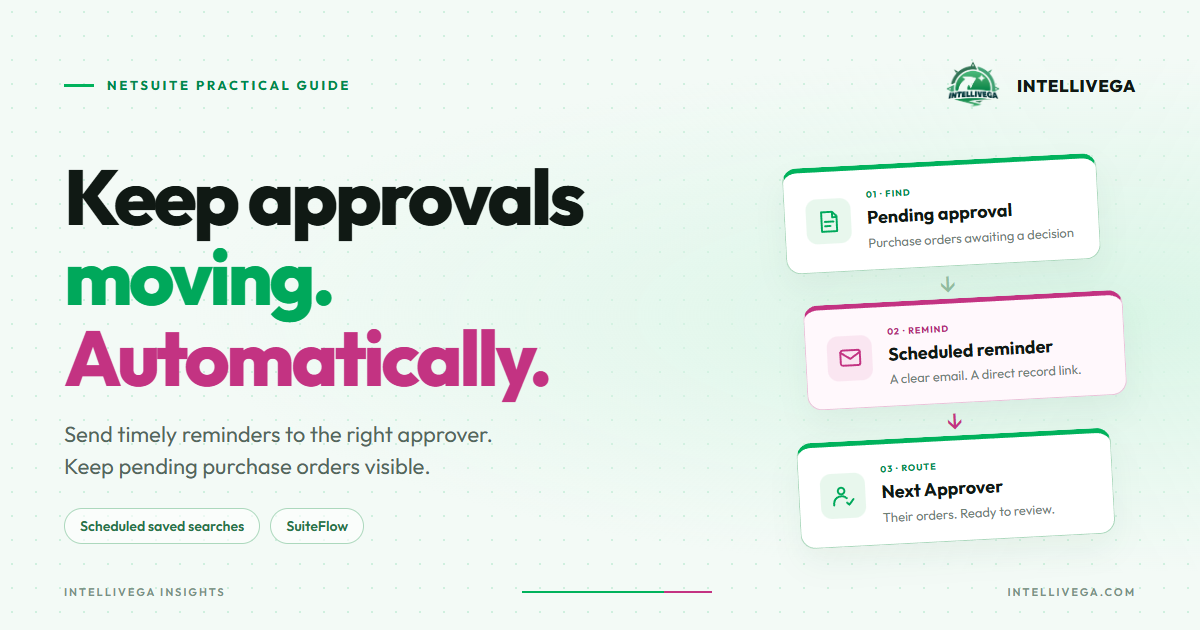
A purchase order can be ready to go and still sit in an approver’s queue. Someone on the purchasing team then has to follow up before the order can move forward.
Automatic reminders keep pending approvals visible without relying on someone to send each follow-up. In NetSuite, you can use a scheduled saved search for a recurring approval digest, or SuiteFlow for reminders tied to time spent in an approval state.
1. Find the purchase orders awaiting approval
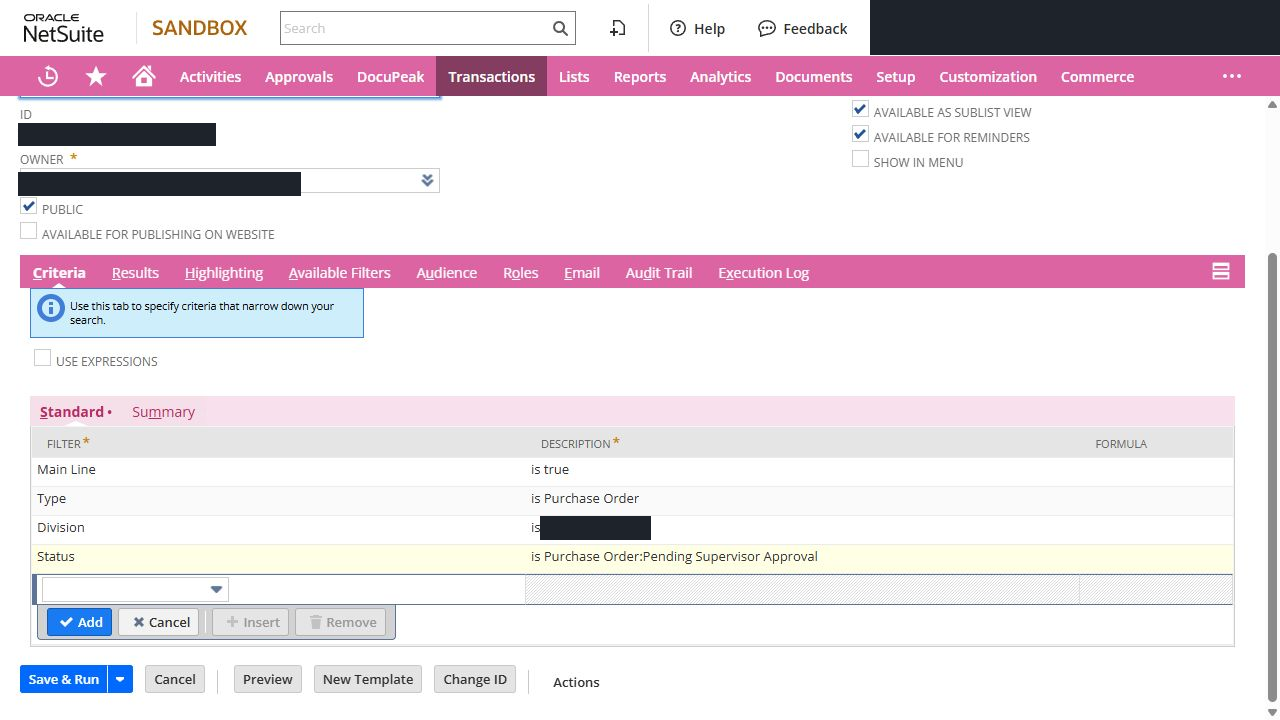
Go to Reports > Saved Searches > All Saved Searches > New and select Transaction.
For purchase orders using the native Next Approver field, start with these criteria:
| Filter | Value |
|---|---|
| Type | Purchase Order |
| Main Line | Yes |
| Approval Status | Pending Approval |
| Next Approver | Is not empty |
Use the status field your approval process maintains. Keep pending orders without an approver in a separate exception search; they need a routing correction.
Include document number, vendor, date, amount, currency, and Next Approver in the results.
2. Send each approver their pending orders
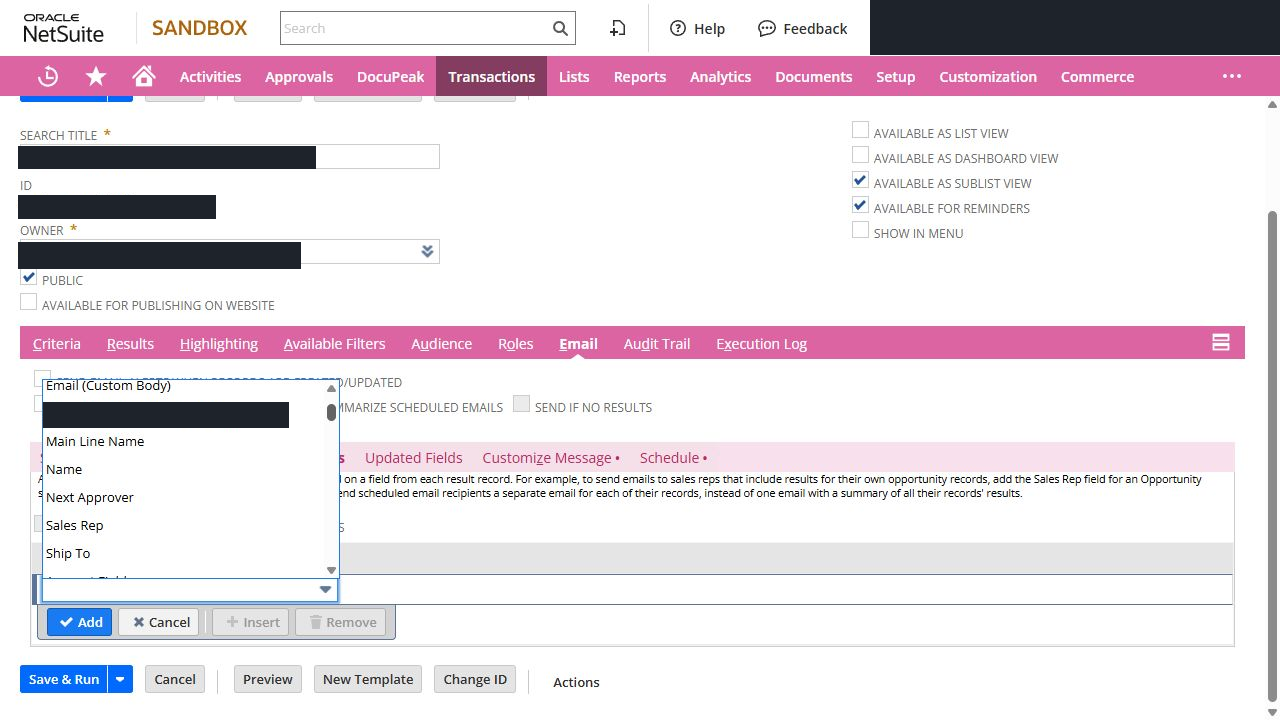
On Email > Recipients from Results, add Next Approver. This field was available in the sandbox search reviewed for this article.
Recipients from results receive their matching records. A fixed recipient list receives the full results.
Enable Send Emails According to Schedule, then Summarize Scheduled Emails to send one digest per approver.
This example assumes one employee approver per PO. Group, role, or parallel approvals need a recipient mapping that matches their routing.
3. Set the schedule and message
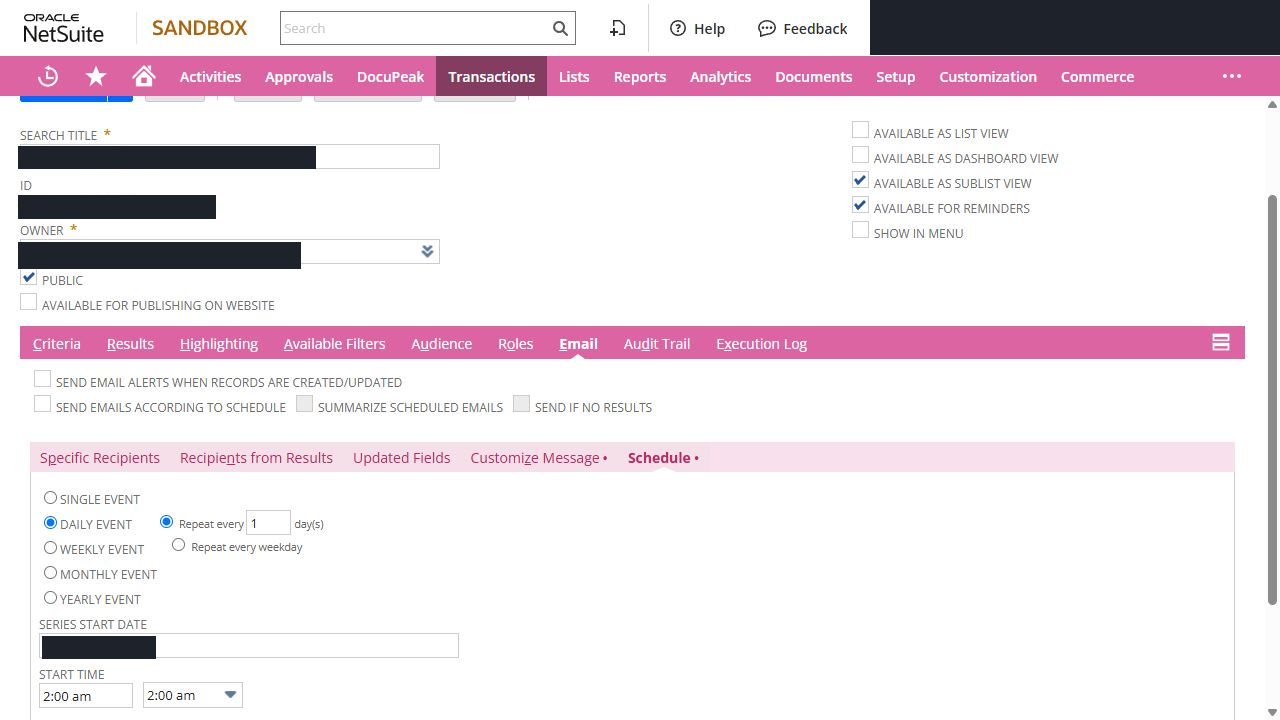
On Schedule, choose the recurrence, start date, and time. A weekday morning digest is a useful starting point. Confirm the time zone.
Disable Send if No Results to avoid empty reminders. Approved orders drop out when they no longer match the search criteria.
Under Customize Message, use a short subject and introduction:
Subject: Purchase orders awaiting your approval
Please review the purchase orders below. Open each record in NetSuite to approve or reject it.
Include record links and a recognizable sender.
4. Use SuiteFlow for reminders after a specific wait
For a reminder two days after a PO reaches an approval stage:
- Open the workflow’s waiting state.
- Add a Send Email action.
- Set Trigger On to Scheduled.
- Set Delay to 2 and Unit to Day.
- Require the record to remain pending with an assigned approver.
- Set the recipient to From Field > Current Record > Next Approver and include a record link.
An Entry email sends when the record reaches the state. It does not provide recurring follow-up.
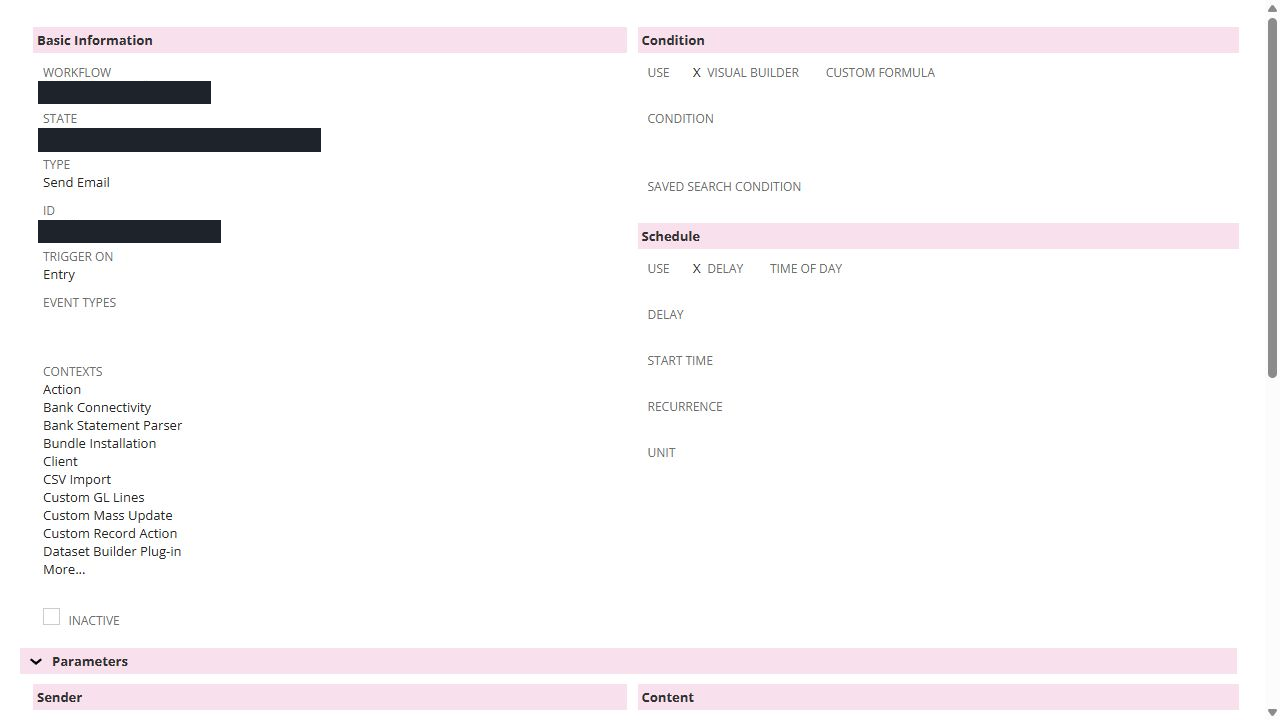
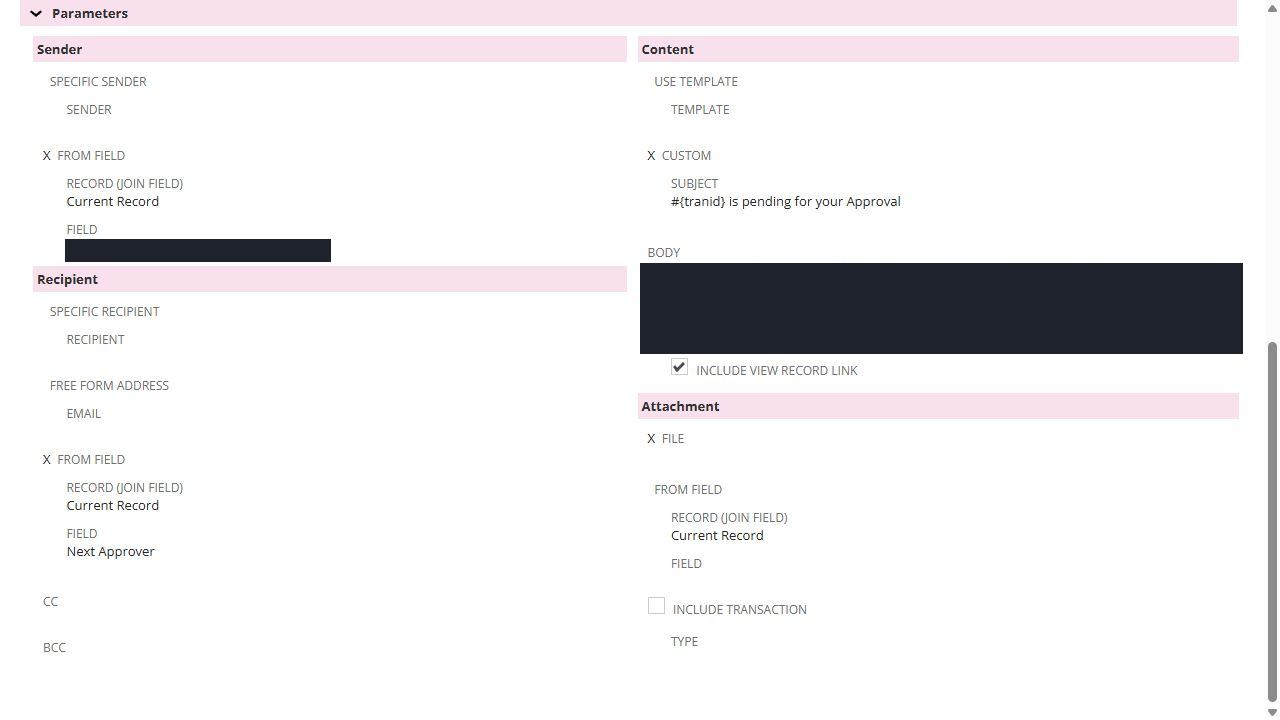
A delay is not a repeating schedule. For repeated reminders, review Time of Day, recurrence, and state behavior. Normal scheduled execution requires Released status, and processing may occur later than the selected time.
5. Validate before activating
Confirm that:
- Each approver receives only their assigned orders.
- Approved and rejected orders are excluded.
- Reassignment changes the recipient.
- Each PO appears once.
- Missing approvers appear in the exception search.
For stage-based reminders, measure time waiting for the current approver. The transaction or creation date may include time spent in earlier stages.
Before an authorized delivery test, check sandbox email routing and designated recipients. Verify the received email as well as the execution log.
Save the validated search to activate scheduled delivery. Save & Email sends results immediately. For SuiteFlow, validate the action and state transitions before releasing the changes.
6. Troubleshoot common reminder issues
| Issue | What to check |
|---|---|
| No reminder arrives | Confirm the search returns eligible POs, is active, and has scheduled email enabled. Check the schedule’s start and end dates. In a sandbox, check email routing. |
| The wrong approver receives the email | Check Next Approver on the PO and the field under Recipients from Results. Specific Recipients receive the full result set. |
| Approved POs still appear | Confirm the pending-status filter uses the field your approval process updates. Check the PO’s current value. |
| A PO appears more than once | Check Main Line = Yes and result joins that can multiply rows. For repeated emails, also review overlapping searches and workflow email actions. |
| Each PO generates a separate email | Enable Summarize Scheduled Emails for a digest. This is separate from summary types on Results columns. |
| Empty reminders arrive | Disable Send if No Results on the search’s Email subtab. |
| Workflow reminders do not repeat | Check the Scheduled trigger, Released status, current state, and action conditions. A Delay is not a repeating schedule; review Time of Day and Recurrence. |
Keep approvals moving
Approval reminders should make pending orders easier to act on and reduce manual follow-up. Keep them focused on the current approver, include a clear path back to the PO, and stop sending them once a decision is made.
We can help you review approval routing and reminder configuration through our NetSuite administration services.
References: Scheduled search emails, recipient mapping, email grouping, empty results, workflow action scheduling, Send Email actions.
Related: Tiered purchase order approvals · Troubleshooting NetSuite workflows